ChatGPT Query Fan-Out Bookmarklet v2 (GPT-5.6)
AI Summary
Since GPT-5.6, ChatGPT no longer saves its fan-out queries in the conversation, so the first version of Quentin Yacoub's bookmarklet only returned citations and search results. Version 2 adds a small recorder that captures the queries live from ChatGPT's answer stream, stores them locally in the browser, and exports them with the citations and web search results, still without an OpenAI API key.

Table of Contents

Cet article est aussi disponible en français : Script d'extraction de query fan-out ChatGPT v2 (GPT-5.6)
Last week, I gave a demo to an Adobe intern studying at Harvard who wanted to talk about GEO (Generative Engine Optimization) with a specialist. He had built a Google Docs extension to optimize content for search and generative engines, and I wanted to show him a simple way to extract ChatGPT’s query fan-out with the free bookmarklet I shared in April. That’s when I realized it no longer worked: the citations and the web search results were still there, but the most interesting part, the fan-out queries, was empty.
The same week, I took part in a panel on AI in SEO and spent time with people from the SEO community in and around Montreal. I received great feedback on this site and on my posts, and honestly, that was the push I needed to get back to work after a summer break spent enjoying the good weather.
So I opened DevTools to understand what had changed. My first guess was that OpenAI had changed the format of the conversation data the bookmarklet reads. It turned out to be more interesting than that: OpenAI stopped saving the fan-out queries in the conversation. Here is version 2. Same idea, same export page, but a new way to catch the queries.
If you want to do this at scale, feel free to contact me on LinkedIn to discuss how Adobe Brand Visibility (formerly LLM Optimizer) could help you.
What changed with GPT-5.6
The first version never read the page itself. It loaded the conversation JSON (/backend-api/conversation/{id}), the same file the ChatGPT web app uses to display a chat, and looked for the search queries inside it.
I opened Chrome DevTools and compared two things: what ChatGPT receives while it writes the answer, and what it saves after. Here is what I found with GPT-5.6:
| Where | Fan-out queries |
|---|---|
| Live answer stream, while ChatGPT is answering | ✅ Present (search_model_queries) |
| Saved conversation, the file v1 reads | ❌ Removed: the web search step is still there, but its queries are stripped |
| ChatGPT interface, after the answer | ❌ Only “Searched 8 sites” |
You can even see the query flash on screen for a second (Searching best SEO agencies Montreal…) while the answer is being generated, then it disappears.
Citations and web search results are still saved, which is why v1 kept showing them. The queries, however, now only exist for a few seconds, in the live stream.
How the Query Fan-Out Bookmarklet v2 Works
Since the queries only travel in the live stream, the bookmarklet now has to be there before ChatGPT answers. It does two jobs:
- Recorder: the first click turns on a small recorder in your ChatGPT tab. It reads the answer stream as ChatGPT receives it and keeps every fan-out query it sees. A blue badge in the top-right corner shows how many queries it has caught for the current conversation.
- Export: the next click (or a click on the badge) opens the same report as v1 in a new tab: fan-out queries, citations, and web search results.
The queries are stored in your own browser (localStorage on chatgpt.com), per conversation, so you can still export them after reloading the page.
What It Retrieves
- Fan-out search queries: the actual strings ChatGPT typed into a search engine, captured live.
- Detailed citations: every URL cited in the response.
- Web search result snippets: the page titles and excerpts saved for each search hit.
One important limit: the recorder only catches queries from answers generated while it is on. It cannot recover the queries of an older conversation.
Why It’s Still Important to See the Fan-out
If you work in SEO/GEO, the reasons have not changed since v1:
- Organic Ranking Visibility: check if your site appears in the results ChatGPT looked at.
- Source Tracking: see which sites the AI relies on to form its opinion of your industry.
- Content Gaps: if the AI searches for “Pricing for [Your Brand]” and finds nothing, you know what content to create.
And the fact that OpenAI now hides these queries after the answer makes a free way to see them even more useful.
Already Using v1? Update It in 30 Seconds
If you already added my previous bookmarklet, you don’t need to create a new one. Just replace its code:
- Copy the new code: Use the copy button on the code block below.
- Edit your bookmark: In your bookmarks bar, right-click your existing
ChatGPT Fan-outbookmark and choose Edit…. - Replace the URL: Click in the URL field, select everything with Ctrl + A (Windows) or ⌘ + A (macOS), then paste the new code. It must still start with
javascript:. - Save: Click Save. You can keep the same name.
- Reload your ChatGPT tabs: Tabs that were already open still run the old version until you reload them.
That’s it: from now on, click the bookmark once before asking your question, as explained below.
How to Install and Use the Bookmarklet on Chrome
This works for Google Chrome on desktop. Already using v1? See the update steps above.
- Show your bookmarks bar: Use Ctrl + Shift + B (Windows) or ⌘ + Shift + B (macOS).
- Create a new bookmarklet: Right-click an empty area of the bar and choose Add page….
- Name it: Call it something like
ChatGPT Fan-out. - Paste the script: In the URL field, paste the entire code block below. It must start with
javascript:.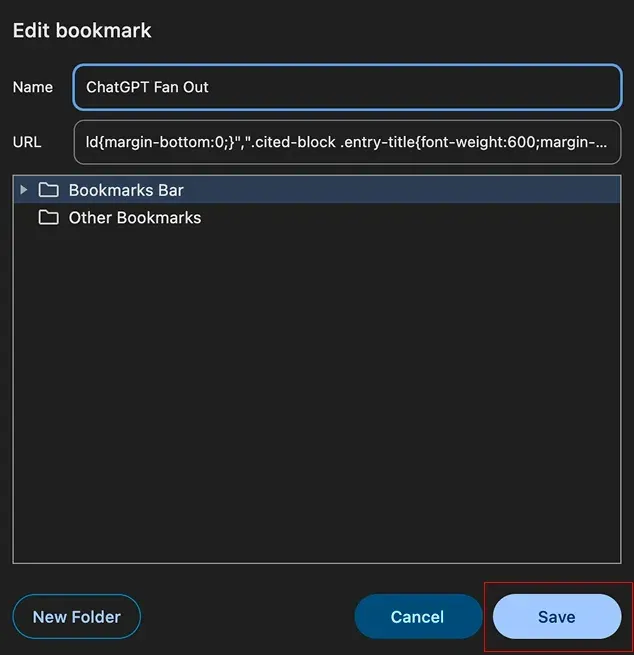
- Turn the recorder on, before asking: Open ChatGPT (you must be logged in) and click the bookmark. A blue “Fan-out recorder” badge appears in the top-right corner.
- Ask your question: Use a prompt that triggers a web search. The badge counts the fan-out queries while ChatGPT answers.
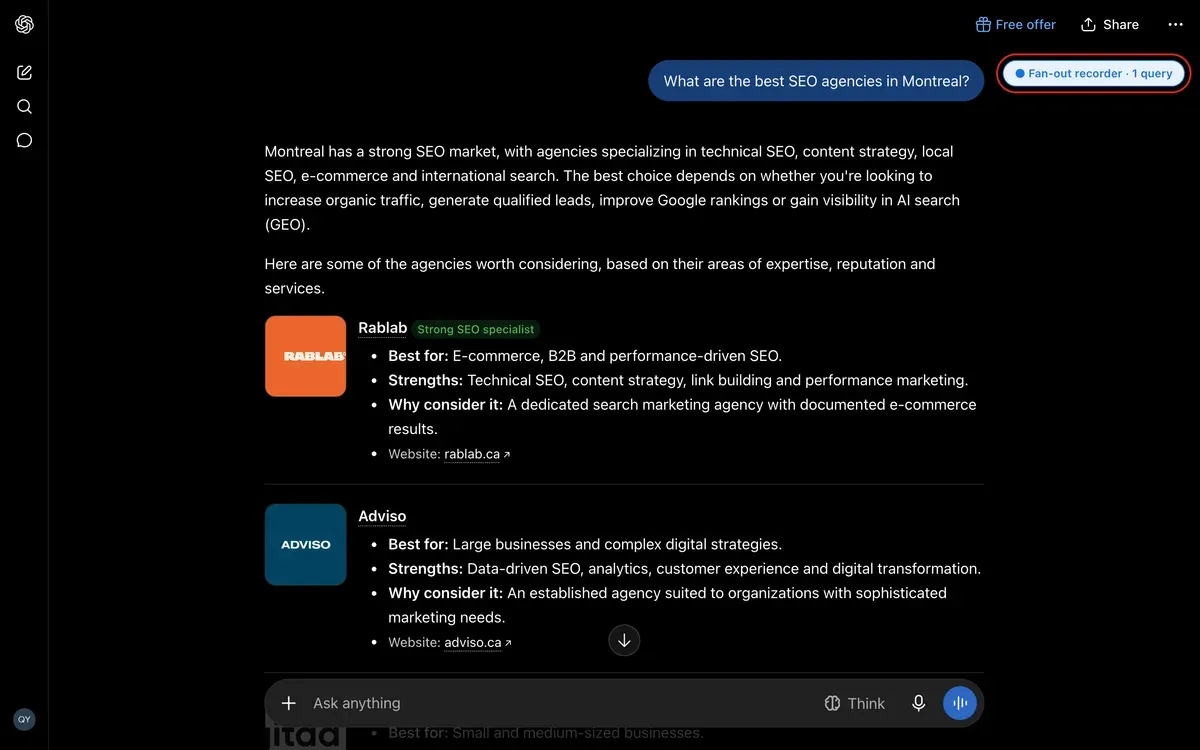
- Export: Click the bookmark again, or click the badge. A new tab opens with the queries captured live, the citations, and the web search results.
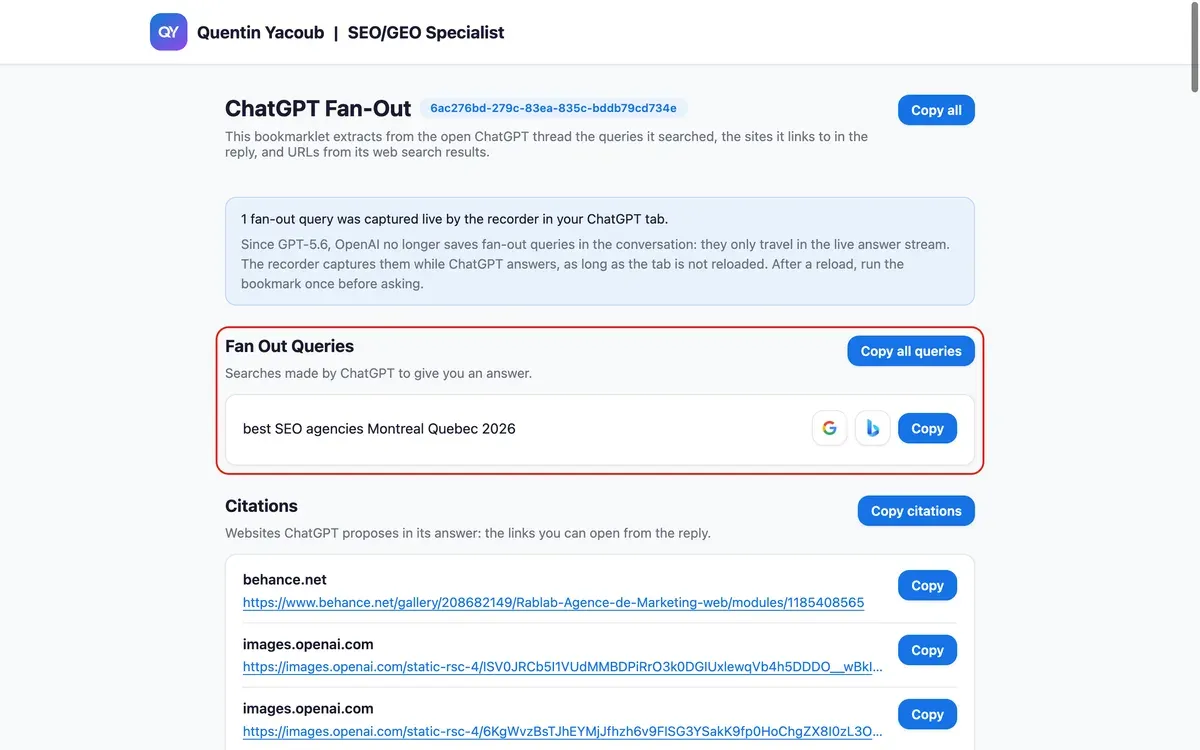
Tip: the badge is your safety check. No badge means no recording. After a page reload, click the bookmark once before asking your next question.
The Bookmarklet Code
I know we probably haven’t met yet, and I’ll be the first to admit that pasting a block of code into your browser can feel a little sketchy. It definitely did for me the first time.
This version does one more thing than v1, and I want to be upfront about it: to catch the queries, it wraps the fetch function of the ChatGPT page so it can read the answer stream as it arrives. It never modifies what ChatGPT receives. The queries are saved in your browser’s localStorage on chatgpt.com, and nothing is sent to an external server.
If you want a second opinion, paste the code into your favorite LLM and ask: Does this code contain anything malicious, does it send data anywhere, and can the author access my ChatGPT conversations? It’s a great way to verify everything for yourself.
I also follow a strict privacy-first approach and do not use tracking cookies, which is why you won’t see a cookie banner on my site. You can read my privacy policy for full details.
javascript:(()=>{const e="__qyFanout",t="qy-fanout:",n="qy-fanout-badge";function a(){return location.pathname.match(/\/c\/([a-z0-9-]+)/i)?.[1]||null}function r(n){const a=window[e],r=[],o=new Set;let i=[];try{i=JSON.parse(localStorage.getItem(t+n)||"[]")}catch{}for(const e of[...i,...a&&a.mem[n]||[]])e&&e.q&&!o.has(e.q)&&(o.add(e.q),r.push(e));return r}function o(n,a){const o=window[e],i=r(n),c=new Set(i.map(e=>e.q));let l=0;for(const e of a)c.has(e)||(c.add(e),i.push({q:e,t:Date.now()}),l++);if(l){o.mem[n]=i;try{localStorage.setItem(t+n,JSON.stringify(i))}catch{}s()}}function i(e,t){const n=document.createElement("div");n.textContent=e,n.style.cssText="position:fixed;left:50%;top:24px;transform:translateX(-50%);z-index:2147483647;max-width:min(560px,calc(100vw - 32px));background:#1473E6;color:#fff;padding:12px 20px;border-radius:12px;font:600 14px/1.45 Inter,system-ui,sans-serif;box-shadow:0 10px 25px rgba(20,115,230,.25);white-space:pre-line;",document.body.appendChild(n),setTimeout(()=>n.remove(),t||6e3)}function s(){let e=document.getElementById(n);e||(e=document.createElement("button"),e.id=n,e.type="button",e.title="ChatGPT Fan-Out recorder is ON. Click to export this conversation.",e.style.cssText="position:fixed;right:16px;top:64px;z-index:2147483646;display:flex;align-items:center;gap:6px;padding:6px 12px;border:1px solid #1473E6;border-radius:999px;background:#E8F1FC;color:#1473E6;font:600 12px/1.2 Inter,system-ui,sans-serif;cursor:pointer;box-shadow:0 1px 3px rgba(0,0,0,.08);",e.onclick=()=>{const e=a();e?c(e,!1):i("Open a conversation (/c/...) to export it.",3e3)},document.body.appendChild(e));const t=a(),o=t?r(t).length:0;e.textContent="● Fan-out recorder"+(t?" · "+o+(1===o?" query":" queries"):"")}async function c(e,t){const n="https://quentinyacoub.com",a=n+"/favicon.svg",o=n+"/img/logo-quentin-yacoub.webp",i="Quentin Yacoub",s=n+"/img/photo-quentin-yacoub.webp",c="SEO/GEO Specialist",l=n+"/en/";let d=null;try{if(d=window.open("","_blank"),!d)return void alert("ChatGPT Fan-Out\n\nYour browser blocked the new tab. Allow pop-ups for ChatGPT and try again.");const C=await fetch("/api/auth/session",{credentials:"include"}).then(e=>e.json()).catch(()=>({})),v=C?.accessToken;if(!v)return d.close(),void alert("ChatGPT Fan-Out\n\nCould not read your ChatGPT session. Sign in at chatgpt.com, reload this conversation, then run the bookmark again.");const k=`/backend-api/conversation/${encodeURIComponent(e)}`,E=await fetch(k,{credentials:"include",headers:{Authorization:"Bearer "+v,"Content-Type":"application/json"}});if(!E.ok)throw d.close(),new Error("Conversation fetch failed: "+E.status);const q=await E.json(),N=new Set,T=[],_=[],A=[];function p(e){try{const t=new URL(String(e).trim());if("http:"!==t.protocol&&"https:"!==t.protocol)return String(e).trim();const n=t.searchParams;for(const e of[...n.keys()]){const t=e.toLowerCase();(t.startsWith("utm_")||"gclid"===t||"fbclid"===t||"mc_cid"===t||"mc_eid"===t)&&n.delete(e)}return t.toString()}catch{return String(e).trim()}}function h(e){if(null==e)return;const t=("string"==typeof e?e:"object"==typeof e&&null!=e.q?String(e.q):"").trim();t&&!N.has(t)&&(N.add(t),T.push({q:t}))}!function e(t){if(t&&"object"==typeof t){"search_result_group"===t.type&&Array.isArray(t.entries)&&t.entries.forEach(e=>{if("search_result"===e?.type&&e.url&&e.title&&e.snippet){const t=p(e.url);if(!function(e){try{const t=new URL(String(e).trim());return"http:"===t.protocol||"https:"===t.protocol}catch{return!1}}(t))return;A.push({title:e.title,url:t,snippet:e.snippet})}});for(const n in t)"entries"!==n&&e(t[n])}}(q);const S=new Set,F=[];function m(e){try{const t=p(e),n=new URL(t);if("http:"!==n.protocol&&"https:"!==n.protocol)return null;const a=(n.pathname||"/").replace(/\/+$/,"")||"/",r=[...new URLSearchParams(n.search).entries()].sort((e,t)=>e[0].localeCompare(t[0])).map(([e,t])=>`${encodeURIComponent(e)}=${encodeURIComponent(t)}`).join("&");return(n.hostname.toLowerCase()+a+(r?"?"+r:"")).toLowerCase()}catch{return null}}function u(e,t){const n=String(e||"").trim();if(!/^https?:\/\//i.test(n))return;const a=p(n),r=m(a);if(!r||S.has(r))return;if(function(e){if(!e)return!1;for(let t=0;t<A.length;t++)if(m(A[t].url)===e)return!0;return!1}(r))return;S.add(r);let o=t&&String(t).trim()||"";if(!o)try{o=new URL(a).hostname.replace(/^www\./,"")}catch{o=a}const i=function(e){try{const t=new URL(String(e).trim());return"images.openai.com"===t.hostname&&t.pathname.includes("/thumbnails/")}catch{return!1}}(a);if(i){const e=t&&String(t).trim();o=e&&!/^images\.openai\.com$/i.test(e.replace(/^www\./,""))?"Product thumbnail: "+e:"Product thumbnail"}F.push({url:a,title:o,isProductThumbnail:i})}function f(e){if(!e||"object"!=typeof e)return;const t=e.queries;Array.isArray(t)&&t.forEach(e=>h(e))}const j=r(e);if(j.forEach(e=>h(e.q)),function(e){const t=e?.mapping;if(t&&"object"==typeof t)for(const e of Object.keys(t)){const n=t[e]?.message?.metadata;if(!n||"object"!=typeof n)continue;const a=n.content_references;if(Array.isArray(a))for(const e of a){if(!e||"object"!=typeof e)continue;const t=e.items;if(Array.isArray(t))for(const e of t)if(e&&"object"==typeof e&&e.url){const t=null!=e.attribution?String(e.attribution):"";u(e.url,t||(null!=e.title?String(e.title):""))}if("product_entity"===e.type&&e.product&&"object"==typeof e.product){const t=e.product,n=null!=t.title?String(t.title).trim():"",a=t.image_urls;Array.isArray(a)&&a.forEach(e=>{"string"==typeof e&&e.trim()&&u(e.trim(),n)})}const n=e.safe_urls;if(Array.isArray(n))for(const e of n)"string"==typeof e&&e.trim()&&u(e.trim(),"")}const r=n.safe_urls;if(Array.isArray(r))for(const e of r)"string"==typeof e&&e.trim()&&u(e.trim(),"")}}(q),function e(t,n){if(t&&"object"==typeof t&&!(n>80)){f(t.search_model_queries),t.metadata?.search_model_queries&&f(t.metadata.search_model_queries),Array.isArray(t.search_queries)&&t.search_queries.forEach(e=>h(null!=e?.q?e.q:e)),t.metadata&&Array.isArray(t.metadata.search_queries)&&t.metadata.search_queries.forEach(e=>h(null!=e?.q?e.q:e)),Array.isArray(t.queries)&&t.queries.length&&"string"==typeof t.queries[0]&&t.queries.forEach(e=>h(e)),"thoughts"===t.content_type&&Array.isArray(t.thoughts)&&t.thoughts.forEach(e=>e?.content&&_.push(String(e.content))),"thoughts"===t.type&&Array.isArray(t.thoughts)&&t.thoughts.forEach(e=>e?.content&&_.push(String(e.content)));for(const a in t)"search_queries"!==a&&"metadata"!==a&&e(t[a],n+1);if(t.metadata)for(const a in t.metadata)e(t.metadata[a],n+1)}}(q,0),function e(t,n){if(!t||"object"!=typeof t||n>80)return;const a=t.product_lookup_data;if(a&&"object"==typeof a){const e=a.request_query;"string"==typeof e&&e.trim()&&h(e.trim())}for(const a in t)e(t[a],n+1)}(q,0),!(T.length||_.length||A.length||F.length))return d.close(),void alert("ChatGPT Fan-Out\n\nNothing to export from this conversation yet: no fan-out queries, web results, reflections, or cited links were found.\n\nThe recorder is ON in this tab: ask a question that uses web search (do not reload the page), then run the bookmark again.");const z=d.document;z.open(),z.write('<!DOCTYPE html><html><head><meta charset="utf-8"><meta name="viewport" content="width=device-width,initial-scale=1"><title>ChatGPT Fan-Out</title></head><body></body></html>'),z.close();const O=z.createElement("link");O.rel="icon",O.type="image/svg+xml",O.href=a,z.head.appendChild(O);const P=z.createElement("link");P.rel="stylesheet",P.href="https://fonts.googleapis.com/css2?family=Inter:wght@400;600;700&display=swap",z.head.appendChild(P);const G=z.createElement("style");G.textContent=[":root{--primary:#1473E6;--primary-hover:#0D66D0;--primary-light:#E8F1FC;--text:#1A1A2E;--muted:#6B7280;--bg:#FFFFFF;--bg-alt:#F8F9FA;--border:#E5E7EB;}","body{margin:0;padding:0;font-family:Inter,system-ui,sans-serif;background:var(--bg-alt);color:var(--text);}",".topbar{background:var(--bg);border-bottom:1px solid var(--border);box-shadow:0 1px 3px rgba(0,0,0,.06);}",".topbar-inner{max-width:960px;margin:0 auto;padding:14px 20px;display:flex;align-items:center;gap:12px;flex-wrap:wrap;}",".brand{display:flex;align-items:center;gap:10px;text-decoration:none;color:var(--text);}",".brand:hover .brand-name,.brand:hover .brand-role,.brand:hover .brand-sep{color:var(--primary);}",".brand-logo{width:40px;height:40px;border-radius:12px;object-fit:cover;background:linear-gradient(135deg,#1473E6,#8E5BF6);}",".brand-line{display:flex;flex-wrap:wrap;align-items:baseline;gap:6px 10px;}",".brand-name{font-weight:700;font-size:1.125rem;}",".brand-sep{font-size:1.125rem;font-weight:700;color:var(--text);}",".brand-role{font-size:1.125rem;font-weight:700;color:var(--text);}","#main-content{max-width:800px;margin:32px auto;padding:0 20px 48px;}","h1{font-size:1.5rem;font-weight:700;margin:0 0 8px;display:flex;flex-wrap:wrap;align-items:center;gap:8px;}","h2{font-size:1.125rem;font-weight:700;margin:0;color:var(--text);}",".section-intro{margin-top:32px;}",".header + .section-intro{margin-top:0;}",".section-desc{margin:8px 0 0;font-size:14px;line-height:1.5;color:var(--muted);max-width:640px;}",".section-head{display:flex;flex-wrap:wrap;align-items:flex-start;gap:12px;margin:0 0 12px;}",".section-head-main{flex:1 1 220px;min-width:0;}",".section-actions{display:flex;align-items:center;justify-content:flex-end;gap:10px;flex-shrink:0;margin-left:auto;}",".query-search-btn{display:inline-flex;align-items:center;justify-content:center;width:40px;height:40px;border-radius:12px;border:1px solid var(--border);background:var(--bg);box-shadow:0 1px 2px rgba(0,0,0,.06);text-decoration:none;}",".query-search-btn:hover{background:var(--primary-light);border-color:var(--primary);}",".query-search-btn img{display:block;width:20px;height:20px;}",".query-row{display:flex;align-items:center;justify-content:space-between;gap:12px;padding:12px 0;border-bottom:1px solid var(--border);}",".query-row:first-child{padding-top:4px;}",".query-row:last-child{border-bottom:none;padding-bottom:4px;}",".query-text{flex:1;min-width:0;font-size:15px;line-height:1.5;word-break:break-word;}",".query-row-actions{display:flex;align-items:center;gap:8px;flex-shrink:0;}",".query-row .query-search-btn{width:36px;height:36px;}",".block-card{padding:12px 18px 16px;background:var(--bg);border:1px solid var(--border);border-radius:12px;box-shadow:0 1px 3px rgba(0,0,0,.06);margin-bottom:8px;}",".block-pre{margin:0;white-space:pre-wrap;word-break:break-word;font-size:15px;line-height:1.55;color:var(--text);}",".cited-query-row{align-items:flex-start;}",".cited-row-main{flex:1;min-width:0;display:flex;flex-direction:column;gap:4px;}",".cited-row-title{font-weight:600;font-size:15px;line-height:1.35;color:var(--text);}",".cited-thumb-star{color:var(--muted);font-weight:600;margin-right:2px;}",".cited-row-url{min-width:0;max-width:100%;overflow:hidden;font-size:14px;line-height:1.4;}",".cited-row-url a.link{display:block;overflow:hidden;text-overflow:ellipsis;white-space:nowrap;}",".search-result-url-wrap{min-width:0;max-width:100%;overflow:hidden;}",".search-result-url-wrap a.link{display:block;overflow:hidden;text-overflow:ellipsis;white-space:nowrap;}",".search-sources-footnote{margin:10px 0 0;font-size:13px;line-height:1.5;color:var(--muted);padding:0 2px 0 0;}",".cited-block .entry{margin-bottom:14px;}",".cited-block .entry:last-child{margin-bottom:0;}",".cited-block .entry-title{font-weight:600;margin-bottom:4px;}",".cited-footnote{margin:10px 0 0;font-size:13px;line-height:1.5;color:var(--muted);padding:0 2px 0 0;}","button{padding:8px 14px;border:none;border-radius:12px;background:var(--primary);color:#fff;font-weight:600;font-size:14px;cursor:pointer;font-family:inherit;box-shadow:0 1px 3px rgba(0,0,0,.08);}","button:hover{background:var(--primary-hover);}","a.link{color:var(--primary);text-decoration:underline;text-underline-offset:3px;}","a.link:hover{color:var(--primary-hover);}",".header{display:flex;flex-wrap:wrap;align-items:flex-start;gap:12px;margin-bottom:24px;}",".header-main{flex:1 1 220px;min-width:0;}",".header > button{flex-shrink:0;margin-left:auto;align-self:flex-start;}",".toast{position:fixed;left:50%;top:24px;transform:translateX(-50%);background:var(--primary);color:#fff;padding:12px 28px;border-radius:12px;opacity:0;box-shadow:0 10px 25px rgba(20,115,230,.25);transition:opacity .25s;z-index:2002;font-size:15px;font-weight:600;pointer-events:none;}",".toast.show{opacity:1;}",".notice{margin:0 0 8px;padding:12px 16px;background:var(--primary-light);border:1px solid #BFD8F7;border-radius:12px;font-size:14px;line-height:1.5;}",".notice p{margin:0;}",".notice p + p{margin-top:6px;color:var(--muted);}",".notice-warn{background:#FFF8E6;border-color:#F5DFA0;}",".pill{display:inline-block;background:var(--primary-light);color:var(--primary);border-radius:999px;padding:4px 12px;font-size:12px;font-weight:600;margin-left:0;}",".pill-cid{word-break:break-all;white-space:normal;max-width:100%;}",".subtle{font-size:14px;color:var(--muted);margin:0 0 16px;}",".author-card{margin-top:40px;padding:24px;background:var(--bg);border:1px solid var(--border);border-radius:16px;box-shadow:0 1px 3px rgba(0,0,0,.06);}",".author-head{display:flex;flex-direction:row;gap:12px;align-items:flex-start;margin-bottom:12px;}","@media (min-width:768px){.author-head{gap:16px;}}",".author-photo{width:56px;height:56px;border-radius:12px;object-fit:cover;flex-shrink:0;}","@media (min-width:768px){.author-photo{width:80px;height:80px;}}",".author-head-text{display:flex;flex-direction:column;gap:4px;justify-content:center;min-width:0;}",".author-name-row{display:flex;align-items:center;gap:8px;flex-wrap:nowrap;min-width:0;}",".author-gradient-box{width:36px;height:36px;border-radius:10px;background:linear-gradient(135deg,#1473E6,#8E5BF6);display:flex;align-items:center;justify-content:center;flex-shrink:0;overflow:hidden;}","@media (min-width:768px){.author-gradient-box{width:48px;height:48px;border-radius:12px;}}",".author-mini-logo{width:100%;height:100%;object-fit:cover;display:block;}",".author-display-name{font-weight:700;font-size:1.125rem;color:var(--text);white-space:nowrap;overflow:hidden;text-overflow:ellipsis;}","@media (min-width:768px){.author-display-name{font-size:1.875rem;}}",".author-role-line{font-size:0.875rem;color:var(--muted);}","@media (min-width:768px){.author-role-line{font-size:1.25rem;}}",".author-bio{font-size:0.875rem;line-height:1.625;color:var(--muted);margin:0 0 12px;}",".linkedin-btn{display:inline-flex;align-items:center;gap:8px;padding:8px 16px;background:var(--primary);color:#fff;font-weight:600;border-radius:12px;text-decoration:none;font-size:0.875rem;box-shadow:0 1px 3px rgba(0,0,0,.08);}",".linkedin-btn:hover{background:var(--primary-hover);color:#fff;}",".linkedin-btn svg{flex-shrink:0;}"].join(""),z.head.appendChild(G);const I=z.createElement("div");I.className="topbar";const R=z.createElement("div");R.className="topbar-inner";const L=z.createElement("a");L.className="brand",L.href=n+"/en/",L.target="_blank";const U=z.createElement("img");U.className="brand-logo",U.src=o,U.alt=i,U.width=40,U.height=40;const B=z.createElement("span");B.className="brand-line";const D=z.createElement("span");D.className="brand-name",D.textContent=i;const H=z.createElement("span");H.className="brand-sep",H.textContent=" | ";const Q=z.createElement("span");Q.className="brand-role",Q.textContent=c,B.appendChild(D),B.appendChild(H),B.appendChild(Q),L.appendChild(U),L.appendChild(B),R.appendChild(L),I.appendChild(R),z.body.appendChild(I);const $=z.createElement("div");$.className="toast",$.id="toast",$.textContent="Copied!",z.body.appendChild($);const W=z.createElement("div");W.id="main-content",z.body.appendChild(W);const J=z.createElement("div");J.className="header";const M=z.createElement("div");M.className="header-main";const V=z.createElement("h1");V.textContent="ChatGPT Fan-Out";const Y=z.createElement("span");Y.className="pill pill-cid",Y.textContent=e,V.appendChild(Y);const X=z.createElement("p");function g(){return F.map(e=>String(e.url).trim()).join("\n")}function x(){return A.map(e=>String(e.url).trim()).join("\n")}function b(){return T.map(e=>e.q).join("\n")}X.className="subtle",X.textContent="This bookmarklet extracts from the open ChatGPT thread the queries it searched, the sites it links to in the reply, and URLs from its web search results.",M.appendChild(V),M.appendChild(X);const K=z.createElement("button");K.textContent="Copy all",K.onclick=()=>w(function(){const e=[];return T.length&&e.push("--- Fan Out Queries ---\n"+b()),_.length&&e.push("--- Reasoning / thoughts ---\n"+_.join("\n\n")),F.length&&e.push("--- Citations ---\n"+g()),A.length&&e.push("--- Web search results ---\n"+x()),e.join("\n\n")}(),z),J.appendChild(M),J.appendChild(K),W.appendChild(J);{const ue=z.createElement("div");ue.className="notice"+(j.length?"":" notice-warn");const fe=z.createElement("p");fe.textContent=j.length?j.length+(1===j.length?" fan-out query was":" fan-out queries were")+" captured live by the recorder in your ChatGPT tab.":"No fan-out query was recorded for this conversation.";const ge=z.createElement("p");ge.textContent="Since GPT-5.6, OpenAI no longer saves fan-out queries in the conversation: they only travel in the live answer stream. "+(t?"The recorder has just been switched ON in your ChatGPT tab. Keep that tab open (no reload), ask your next question, then run the bookmark again. Queries from answers generated before that cannot be recovered.":"The recorder captures them while ChatGPT answers, as long as the tab is not reloaded. After a reload, run the bookmark once before asking."),ue.appendChild(fe),ue.appendChild(ge),W.appendChild(ue)}const Z="Searches made by ChatGPT to give you an answer.",ee="Websites ChatGPT proposes in its answer: the links you can open from the reply.",te="These rows are what the chat export saves as web-search results for this thread: a page title, link, and short excerpt (snippet) per hit. The file does not say if the model opened the full page or only had this excerpt, and it does not say which search engine was used.";function y(e,t,n){const a=z.createElement("div");a.className="section-intro";const r=z.createElement("div");r.className="section-head";const o=z.createElement("div");o.className="section-head-main";const i=z.createElement("h2");if(i.textContent=e,o.appendChild(i),t){const e=z.createElement("p");e.className="section-desc",e.textContent=t,o.appendChild(e)}const s=z.createElement("div");s.className="section-actions";for(let e=0;e<n.length;e++){const t=n[e],a=z.createElement("button");a.textContent=t.label,a.onclick=()=>w(t.getText(),z),s.appendChild(a)}r.appendChild(o),r.appendChild(s),a.appendChild(r),W.appendChild(a)}if(T.length){y("Fan Out Queries",Z,[{label:"Copy all queries",getText:b}]);const xe=z.createElement("div");xe.className="block-card",T.forEach(e=>{const t=z.createElement("div");t.className="query-row";const n=z.createElement("div");n.className="query-text",n.textContent=e.q;const a=z.createElement("div");a.className="query-row-actions";const r=z.createElement("a");r.className="query-search-btn",r.href="https://www.google.com/search?q="+encodeURIComponent(e.q)+"&ie=UTF-8",r.target="_blank",r.title="Search this query on Google";const o=z.createElement("img");o.src="https://www.google.com/favicon.ico",o.alt="Google",o.width=20,o.height=20,r.appendChild(o);const i=z.createElement("a");i.className="query-search-btn",i.href="https://www.bing.com/search?q="+encodeURIComponent(e.q)+"&form=QBLH&sp=-1&lq=0&pq=&sc=0-0&qs=n&sk=",i.target="_blank",i.title="Search this query on Bing";const s=z.createElement("img");s.src="https://www.bing.com/favicon.ico",s.alt="Bing",s.width=20,s.height=20,i.appendChild(s);const c=z.createElement("button");c.textContent="Copy",c.onclick=()=>w(e.q,z),a.appendChild(r),a.appendChild(i),a.appendChild(c),t.appendChild(n),t.appendChild(a),xe.appendChild(t)}),W.appendChild(xe)}if(_.length){y("Reasoning / thoughts",null,[{label:"Copy thoughts",getText:()=>_.join("\n\n")}]);const be=z.createElement("div");be.className="block-card";const ye=z.createElement("pre");ye.className="block-pre",ye.textContent=_.join("\n\n"),be.appendChild(ye),W.appendChild(be)}if(F.length){y("Citations",ee,[{label:"Copy citations",getText:g}]);const we=z.createElement("div");if(we.className="block-card",F.forEach(e=>{const t=z.createElement("div");t.className="query-row cited-query-row";const n=z.createElement("div");n.className="cited-row-main";const a=z.createElement("div");if(a.className="cited-row-title",e.isProductThumbnail){const t=z.createElement("span");t.className="cited-thumb-star",t.textContent="*",t.title="See note below.",a.appendChild(t),a.appendChild(z.createTextNode(" "+e.title))}else a.textContent=e.title;const r=z.createElement("div");r.className="cited-row-url";const o=z.createElement("a");o.className="link",o.href=e.url,o.textContent=e.url,o.title=e.url,o.target="_blank",r.appendChild(o),n.appendChild(a),n.appendChild(r);const i=z.createElement("div");i.className="query-row-actions";const s=z.createElement("button");s.textContent="Copy",s.onclick=()=>w(e.url,z),i.appendChild(s),t.appendChild(n),t.appendChild(i),we.appendChild(t)}),W.appendChild(we),F.some(e=>e.isProductThumbnail)){const Ce=z.createElement("p");Ce.className="cited-footnote",Ce.textContent="* Retailer and shopping-panel links are often absent from the saved conversation; this bookmarklet cannot retrieve them yet, only the preview thumbnail URL from the export is shown here.",W.appendChild(Ce)}}if(A.length){y("Web search results",te,[{label:"Copy search URLs",getText:x}]);const ve=z.createElement("div");ve.className="block-card cited-block",A.forEach(e=>{const t=z.createElement("div");t.className="entry";const n=z.createElement("div");n.className="entry-title",n.textContent=e.title;const a=z.createElement("div");a.className="search-result-url-wrap";const r=z.createElement("a");if(r.className="link",r.href=e.url,r.textContent=e.url,r.title=e.url,r.target="_blank",a.appendChild(r),t.appendChild(n),t.appendChild(a),e.snippet){const n=z.createElement("div");n.style.fontSize="14px",n.style.color="var(--muted)",n.style.marginTop="6px",n.textContent=e.snippet,t.appendChild(n)}ve.appendChild(t)}),W.appendChild(ve);const ke=z.createElement("p");ke.className="search-sources-footnote",ke.textContent="ChatGPT may retrieve or use more web results than you see in the UI; this table only lists the search-source rows saved in this conversation export.",W.appendChild(ke)}const ne=z.createElement("div");ne.className="author-card";const ae=z.createElement("div");ae.className="author-head";const re=z.createElement("img");re.className="author-photo",re.src=s,re.alt=i,re.width=80,re.height=80,re.loading="lazy",re.decoding="async";const oe=z.createElement("div");oe.className="author-head-text";const ie=z.createElement("div");ie.className="author-name-row";const se=z.createElement("div");se.className="author-gradient-box";const ce=z.createElement("img");ce.className="author-mini-logo",ce.src=o,ce.alt="",ce.width=48,ce.height=48,ce.setAttribute("aria-hidden","true"),se.appendChild(ce);const le=z.createElement("span");le.className="author-display-name",le.textContent=i,ie.appendChild(se),ie.appendChild(le);const de=z.createElement("span");de.className="author-role-line",de.textContent=c,oe.appendChild(ie),oe.appendChild(de),ae.appendChild(re),ae.appendChild(oe);const pe=z.createElement("p");pe.className="author-bio",pe.appendChild(z.createTextNode("Hi, I'm Quentin, an SEO/GEO Specialist. I write on the search industry on "));const he=z.createElement("a");he.className="link",he.href=l,he.target="_blank",he.textContent="my personal blog",pe.appendChild(he),pe.appendChild(z.createTextNode(". I document where search is heading and share the practical strategies I actually use to navigate the AI shift. No promises of replacing your marketing team with AI agents, get-rich-quick schemes, or spinning thousands of articles. Just notes and experiments to figure out this new landscape."));const me=z.createElement("a");function w(e,t){const n=t.createElement("textarea");n.value=e,t.body.appendChild(n),n.select();try{t.execCommand("copy"),function(){const e=z.getElementById("toast");e.classList.add("show"),setTimeout(()=>e.classList.remove("show"),2e3)}()}catch{alert("ChatGPT Fan-Out\n\nClipboard copy failed. Try again or copy the text manually.")}t.body.removeChild(n)}me.className="linkedin-btn",me.href="https://www.linkedin.com/in/quentin-yacoub-seo-geo-specialist/?locale=en_US",me.target="_blank",me.insertAdjacentHTML("afterbegin",'<svg width="14" height="14" viewBox="0 0 24 24" fill="currentColor" aria-hidden="true"><path d="M20.447 20.452h-3.554v-5.569c0-1.328-.027-3.037-1.852-3.037-1.853 0-2.136 1.445-2.136 2.939v5.667H9.351V9h3.414v1.561h.046c.477-.9 1.637-1.85 3.37-1.85 3.601 0 4.267 2.37 4.267 5.455v6.286zM5.337 7.433a2.062 2.062 0 0 1-2.063-2.065 2.064 2.064 0 1 1 2.063 2.065zm1.782 13.019H3.555V9h3.564v11.452zM22.225 0H1.771C.792 0 0 .774 0 1.729v20.542C0 23.227.792 24 1.771 24h20.451C23.2 24 24 23.227 24 22.271V1.729C24 .774 23.2 0 22.222 0h.003z"/></svg> '),me.appendChild(z.createTextNode("Connect on LinkedIn")),ne.appendChild(ae),ne.appendChild(pe),ne.appendChild(me),W.appendChild(ne)}catch(Ee){if(d&&!d.closed)try{d.close()}catch{}alert("ChatGPT Fan-Out\n\nCould not load the conversation (network issue, session, or OpenAI changed the API). If you are signed in, reload the chat and try again."),console.error(Ee)}}if(/^((www\.)?chatgpt\.com|chat\.openai\.com)$/.test(location.hostname)){const t=!window[e];t&&function(){const t={version:2,mem:{}};window[e]=t;const n=window.fetch;function r(e,t){if(null!=e)return"string"==typeof e?i(e,t):Array.isArray(e)?e.forEach(e=>r(e,t)):void("object"==typeof e&&(Array.isArray(e.queries)?r(e.queries,t):null!=e.q&&i(e.q,t)))}function i(e,t){if(!(e=String(e).trim()))return;const n=t.conv||a();n?o(n,[e]):t.pending.push(e)}function c(e,t,n){if(e&&"object"==typeof e&&!(n>40))if(Array.isArray(e))for(const a of e)c(a,t,n+1);else{!t.conv&&"string"==typeof e.conversation_id&&e.conversation_id&&(t.conv=e.conversation_id,t.pending.length&&o(t.conv,t.pending.splice(0))),"string"==typeof e.p&&/search_model_queries|search_queries/.test(e.p)&&"v"in e&&r(e.v,t);for(const a in e){const o=e[a];"search_model_queries"===a||"map_search_model_queries"===a||"search_queries"===a?r(o,t):"product_lookup_data"===a&&o&&"string"==typeof o.request_query?i(o.request_query,t):c(o,t,n+1)}}}function l(e,t){if(!e.startsWith("data:"))return;const n=e.slice(5).trim();if(!n||"[DONE]"===n||"{"!==n[0]&&"["!==n[0])return;let a;try{a=JSON.parse(n)}catch{return}c(a,t,0)}window.fetch=async function(){const e=await n.apply(this,arguments);try{const t=e.headers.get("content-type")||"";if(e.body&&/event-stream/i.test(t))return function(e){const t=new TextDecoder,n={conv:null,pending:[]};let r="";const i=new TransformStream({transform(e,a){a.enqueue(e);try{let a;for(r+=t.decode(e,{stream:!0});(a=r.indexOf("\n"))>=0;)l(r.slice(0,a),n),r=r.slice(a+1)}catch{}},flush(){try{r&&l(r,n);const e=n.conv||a();e&&n.pending.length&&o(e,n.pending.splice(0))}catch{}}});return new Response(e.body.pipeThrough(i),{status:e.status,statusText:e.statusText,headers:e.headers})}(e)}catch{}return e};let d=location.pathname;setInterval(()=>{location.pathname!==d&&(d=location.pathname,s())},1e3),s()}();const n=a();n?c(n,t):i(t?"ChatGPT Fan-Out recorder is ON.\nAsk your question in this tab (do not reload), then run the bookmark again or click the badge to export.":"The recorder is already ON. Once ChatGPT has answered, run the bookmark again from the conversation page to export.",t?8e3:5e3)}else alert("ChatGPT Fan-Out\n\nRun this bookmark on chatgpt.com, in the tab where you chat with ChatGPT.")})();Limitations and Potential Errors
No fan-out query was recorded for this conversation.(yellow note in the export) The answer was generated before the recorder was on, or the page was reloaded in between.
- Solution: keep the tab open, check that the badge is visible, ask your question again, then export.
Nothing to export from this conversation yet...The conversation has no web search, no citations, and no recorded query yet.
- Solution: ask a question that forces ChatGPT to look for external data, for example:
What are the best SEO agencies in Montreal?
Your browser blocked the new tab.Chrome blocked the export tab.
- Solution: allow pop-ups for chatgpt.com, then click the bookmark again.
- The badge stays at 0 after an answer that clearly searched the web. OpenAI may have changed the format of the stream again.
- Solution: let me know on LinkedIn and I will update the script and this list for the community.
As with v1, my time for troubleshooting is a bit limited with a baby at home, but I’ll do my best to keep this tool working as ChatGPT evolves.
Please note: All opinions and blog posts shared on this website are strictly my own personal projects. They do not represent the views, strategies, or official products of my employer, Adobe.
Hi, I'm Quentin, an SEO/GEO Specialist at Adobe building AI powered tools for Site Optimizer and Brand Visibility. I use this site to document my thoughts on where search is heading in the age of AI, and to share the strategies and shortcuts I rely on.
Connect on LinkedInRelated Articles
ChatGPT 5.3/5.4 Query Fan Out Extraction Bookmarklet
Get a free bookmarklet to extract the hidden search queries and citations ChatGPT uses to build its answers.
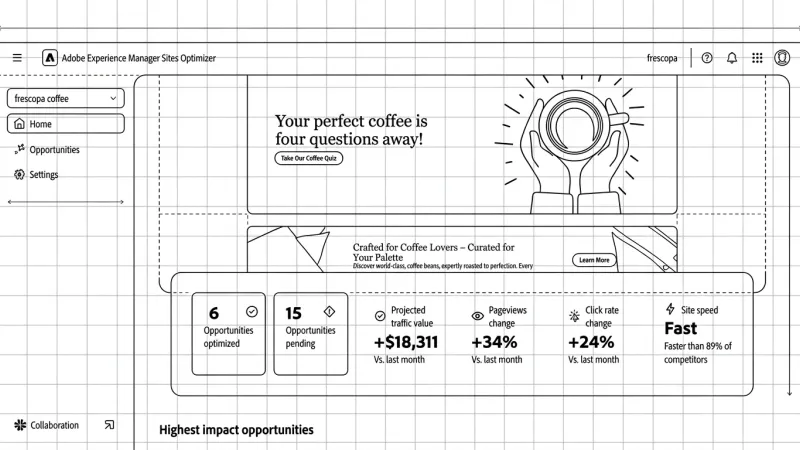
What is AEM Sites Optimizer?
Go behind the scenes of AEM Sites Optimizer to see how we are building an autonomous site optimization system at Adobe.
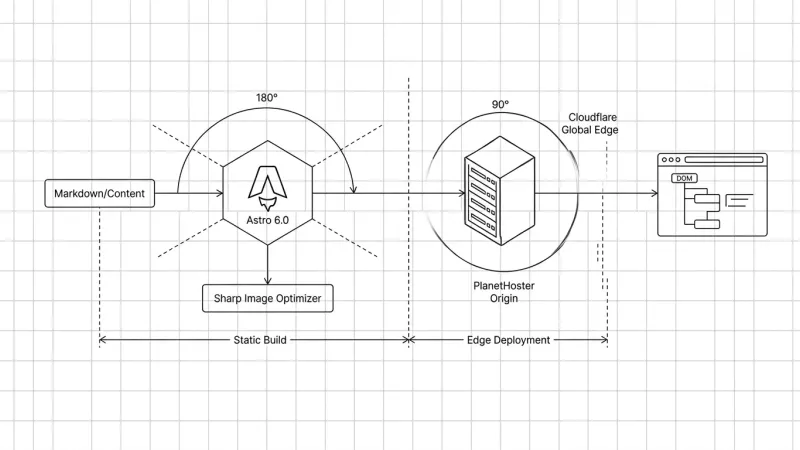
My SEO/GEO Technical Stack: Architecture and Results
Go behind the scenes of an SEO/GEO-first blog architecture. Discover how Astro, Cursor, and Cloudflare deliver perfect Core Web Vitals and peak crawlability for LLMs

Hello World: My First Website
Welcome to my personal blog. Discover why I built this sandbox to document my experiments in SEO, GEO, and AI-driven search. Here's what to expect.