ChatGPT 5.3/5.4 Query Fan Out Extraction Bookmarklet
AI Summary
This post introduces a free browser bookmarklet designed to extract query fan-out data from ChatGPT without needing an OpenAI API key. Quentin Yacoub explains how this tool reveals the hidden search queries and citations used by the AI, providing SEO/GEO specialists with critical visibility into how LLMs research topics, rank sources, and identify content gaps.

Table of Contents

Cet article est aussi disponible en français : Script d'extraction de query fan-out - ChatGPT 5.3/5.4
Update (October 2026): this bookmarklet no longer extracts the fan-out queries since GPT-5.6, because OpenAI stopped saving them in the conversation. Use the new ChatGPT Query Fan-Out Bookmarklet v2 instead.
This morning I saw a post from Chris Long on LinkedIn mentioning that ChatGPT “Fan Out” is back, and I created a simple bookmarklet to pull this data out. No API keys, no complex setup: just a shortcut in your browser.
I had originally used a bookmarklet from SEO Pub and I remember how helpful it was to quickly check a prompt when I wasn’t working at Adobe. While it is now much easier for me to do this at scale with Adobe Brand Visibility (formerly LLM Optimizer), I wanted to share a simple way for people who don’t have access to those enterprise-level tools.
If you want to do this at scale, feel free to contact me on LinkedIn to discuss how Brand Visibility could help you.
What is “Query Fan-out”?
When you give ChatGPT a prompt, sometimes it uses RAG (Retrieval-Augmented Generation) and it breaks it down into several specific searches to get the best data before answering you. For example, a prompt like “Best GEO agencies in Montreal” might trigger five different searches for specific agency names, reviews, or local rankings.
We usually only see the final “Sources” list, but the fan-out queries are the breadcrumbs the AI followed to get there.
What the bookmarklet does
This tool uses your existing logged-in browser session to load the same conversation JSON the web app uses. It does not require an OpenAI API key; it simply performs the same class of request you can inspect yourself in your browser’s DevTools.
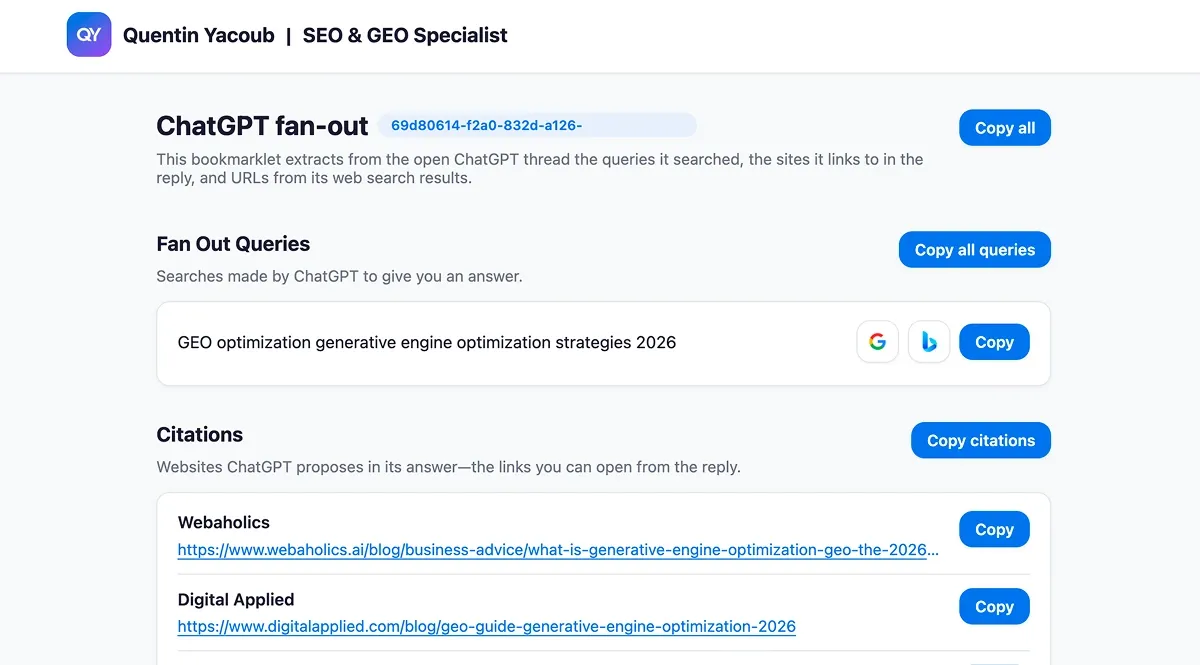
Once you click it on a conversation page, it opens a new tab where it organizes all the hidden technical data into a readable format.
What It Retrieves
The bookmarklet extracts several key layers of data that are usually hidden in the UI:
- Fan-out search queries: The actual strings ChatGPT typed into a search engine.
- Detailed citations: Every URL cited in the response.
- Web search result snippets: The short page titles and excerpts the AI reviewed for each search hit.
Why It’s Important to Know ChatGPT “Thoughts”
If you are working in SEO/GEO, seeing this information is crucial for a few simple reasons:
- Organic Ranking Visibility: You can see if your site actually appeared in the search results ChatGPT looked at.
- Source Tracking: You can see which sites the AI is actually relying on to form its opinion of your industry.
- Content Gaps: If the AI is searching for “Pricing for [Your Brand]” and finding nothing, you know what content you need to create.
How to Install the Bookmarklet on Chrome
This works for Google Chrome on desktop.
- Show your bookmarks bar: Use Ctrl + Shift + B (Windows) or ⌘ + Shift + B (macOS).
- Create a new bookmarklet: Right-click an empty area of the bar and choose Add page….
- Name it: Call it something like
ChatGPT Fan-out. - Paste the script: In the URL field, paste the entire code block below. It must start with
javascript:.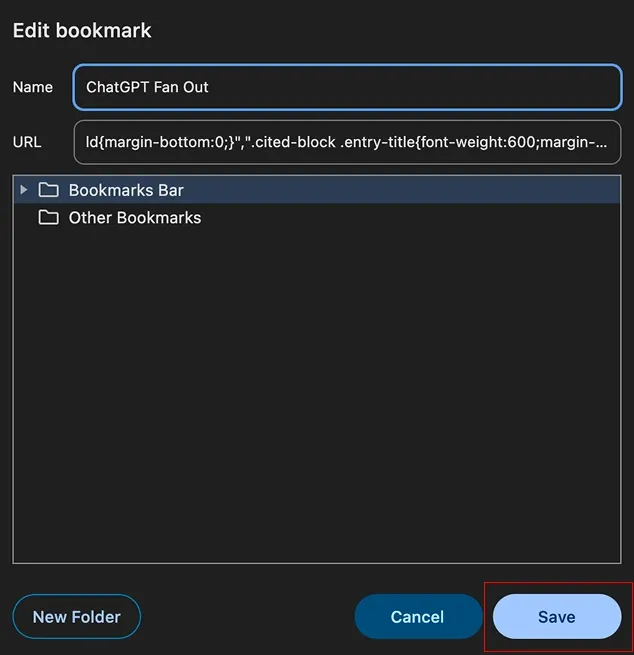
- Run the shortcut: Click the shortcut while on a ChatGPT tab (you must be logged in).
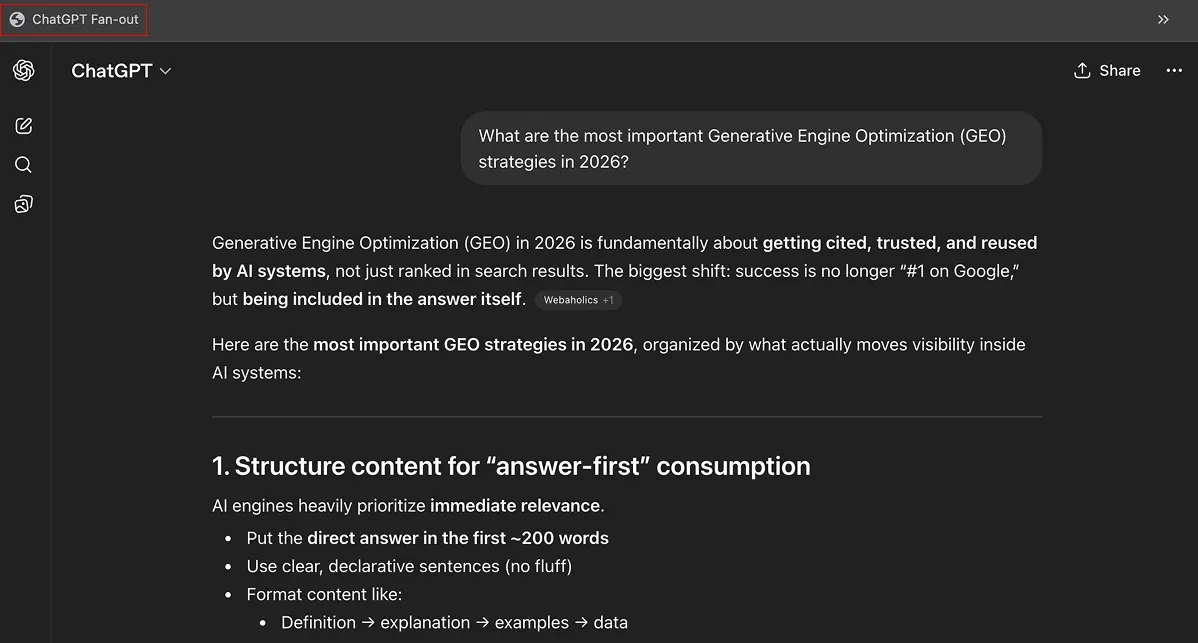
- Check out the result: A new tab will open displaying all the extracted data.
The Bookmarklet Code
I know we probably haven’t met yet, and I’ll be the first to admit that pasting a block of code into your browser can feel a little sketchy—it definitely did for me the first time.
If you want a second opinion, feel free to paste the code into your favorite LLM and ask: Does this code contain anything malicious, and can the author access my ChatGPT conversations? It’s a great way to verify everything for yourself. This script runs entirely on the page origin (chatgpt.com), uses your existing session, and never sends data to external servers.
I also follow a strict privacy-first approach and do not use tracking cookies, which is why you won’t see a cookie banner on my site. You can read my privacy policy for full details.
javascript:(async()=>{const e="https://quentinyacoub.com",t=e+"/favicon.svg",n=e+"/img/logo-quentin-yacoub.webp",a="Quentin Yacoub",r=e+"/img/photo-quentin-yacoub.webp",o="SEO/GEO Specialist",i=e+"/en/";let s=null;try{if("chatgpt.com"!==location.hostname&&"www.chatgpt.com"!==location.hostname&&"chat.openai.com"!==location.hostname)return void alert("ChatGPT Fan-Out\n\nRun this bookmark on chatgpt.com or chat.openai.com, with a conversation page open.");const b=location.pathname.match(/\/c\/([a-z0-9-]+)/i)?.[1];if(!b)return void alert("No conversation ID in the address bar (/c/...). You may not be signed in to ChatGPT. An account is required for the script to work.");if(s=window.open("","_blank"),!s)return void alert("ChatGPT Fan-Out\n\nYour browser blocked the new tab. Allow pop-ups for ChatGPT and try again.");const w=await fetch("/api/auth/session",{credentials:"include"}).then(e=>e.json()).catch(()=>({})),y=w?.accessToken;if(!y)return s.close(),void alert("ChatGPT Fan-Out\n\nCould not read your ChatGPT session. Sign in at chatgpt.com, reload this conversation, then run the bookmark again.");const C=`/backend-api/conversation/${encodeURIComponent(b)}`,v=await fetch(C,{credentials:"include",headers:{Authorization:"Bearer "+y,"Content-Type":"application/json"}});if(!v.ok)throw s.close(),new Error("Conversation fetch failed: "+v.status);const k=await v.json(),E=new Set,q=[],N=[],T=[];function l(e){try{const t=new URL(String(e).trim());if("http:"!==t.protocol&&"https:"!==t.protocol)return String(e).trim();const n=t.searchParams;for(const e of[...n.keys()]){const t=e.toLowerCase();(t.startsWith("utm_")||"gclid"===t||"fbclid"===t||"mc_cid"===t||"mc_eid"===t)&&n.delete(e)}return t.toString()}catch{return String(e).trim()}}function c(e){if(null==e)return;const t=("string"==typeof e?e:"object"==typeof e&&null!=e.q?String(e.q):"").trim();t&&!E.has(t)&&(E.add(t),q.push({q:t}))}!function e(t){if(t&&"object"==typeof t){"search_result_group"===t.type&&Array.isArray(t.entries)&&t.entries.forEach(e=>{if("search_result"===e?.type&&e.url&&e.title&&e.snippet){const t=l(e.url);if(!function(e){try{const t=new URL(String(e).trim());return"http:"===t.protocol||"https:"===t.protocol}catch{return!1}}(t))return;T.push({title:e.title,url:t,snippet:e.snippet})}});for(const n in t)"entries"!==n&&e(t[n])}}(k);const A=new Set,_=[];function d(e){try{const t=l(e),n=new URL(t);if("http:"!==n.protocol&&"https:"!==n.protocol)return null;const a=(n.pathname||"/").replace(/\/+$/,"")||"/",r=[...new URLSearchParams(n.search).entries()].sort((e,t)=>e[0].localeCompare(t[0])).map(([e,t])=>`${encodeURIComponent(e)}=${encodeURIComponent(t)}`).join("&");return(n.hostname.toLowerCase()+a+(r?"?"+r:"")).toLowerCase()}catch{return null}}function p(e,t){const n=String(e||"").trim();if(!/^https?:\/\//i.test(n))return;const a=l(n),r=d(a);if(!r||A.has(r))return;if(function(e){if(!e)return!1;for(let t=0;t<T.length;t++)if(d(T[t].url)===e)return!0;return!1}(r))return;A.add(r);let o=t&&String(t).trim()||"";if(!o)try{o=new URL(a).hostname.replace(/^www\./,"")}catch{o=a}const i=function(e){try{const t=new URL(String(e).trim());return"images.openai.com"===t.hostname&&t.pathname.includes("/thumbnails/")}catch{return!1}}(a);if(i){const e=t&&String(t).trim();o=e&&!/^images\.openai\.com$/i.test(e.replace(/^www\./,""))?"Product thumbnail — "+e:"Product thumbnail"}_.push({url:a,title:o,isProductThumbnail:i})}function h(e){if(!e||"object"!=typeof e)return;const t=e.queries;Array.isArray(t)&&t.forEach(e=>c(e))}if(function(e){const t=e?.mapping;if(t&&"object"==typeof t)for(const e of Object.keys(t)){const n=t[e]?.message?.metadata;if(!n||"object"!=typeof n)continue;const a=n.content_references;if(Array.isArray(a))for(const e of a){if(!e||"object"!=typeof e)continue;const t=e.items;if(Array.isArray(t))for(const e of t)if(e&&"object"==typeof e&&e.url){const t=null!=e.attribution?String(e.attribution):"";p(e.url,t||(null!=e.title?String(e.title):""))}if("product_entity"===e.type&&e.product&&"object"==typeof e.product){const t=e.product,n=null!=t.title?String(t.title).trim():"",a=t.image_urls;Array.isArray(a)&&a.forEach(e=>{"string"==typeof e&&e.trim()&&p(e.trim(),n)})}const n=e.safe_urls;if(Array.isArray(n))for(const e of n)"string"==typeof e&&e.trim()&&p(e.trim(),"")}const r=n.safe_urls;if(Array.isArray(r))for(const e of r)"string"==typeof e&&e.trim()&&p(e.trim(),"")}}(k),function e(t,n){if(t&&"object"==typeof t&&!(n>80)){h(t.search_model_queries),t.metadata?.search_model_queries&&h(t.metadata.search_model_queries),Array.isArray(t.search_queries)&&t.search_queries.forEach(e=>c(null!=e?.q?e.q:e)),t.metadata&&Array.isArray(t.metadata.search_queries)&&t.metadata.search_queries.forEach(e=>c(null!=e?.q?e.q:e)),Array.isArray(t.queries)&&t.queries.length&&"string"==typeof t.queries[0]&&t.queries.forEach(e=>c(e)),"thoughts"===t.content_type&&Array.isArray(t.thoughts)&&t.thoughts.forEach(e=>e?.content&&N.push(String(e.content))),"thoughts"===t.type&&Array.isArray(t.thoughts)&&t.thoughts.forEach(e=>e?.content&&N.push(String(e.content)));for(const a in t)"search_queries"!==a&&"metadata"!==a&&e(t[a],n+1);if(t.metadata)for(const a in t.metadata)e(t.metadata[a],n+1)}}(k,0),function e(t,n){if(!t||"object"!=typeof t||n>80)return;const a=t.product_lookup_data;if(a&&"object"==typeof a){const e=a.request_query;"string"==typeof e&&e.trim()&&c(e.trim())}for(const a in t)e(t[a],n+1)}(k,0),!(q.length||N.length||T.length||_.length))return s.close(),void alert("Nothing to export from this conversation: no fan-out queries, web results, reflections, or cited links were found. Try a reply that used web search, citations, or product-style links.");const j=s.document;j.open(),j.write('<!DOCTYPE html><html><head><meta charset="utf-8"><meta name="viewport" content="width=device-width,initial-scale=1"><title>ChatGPT Fan-Out</title></head><body></body></html>'),j.close();const z=j.createElement("link");z.rel="icon",z.type="image/svg+xml",z.href=t,j.head.appendChild(z);const S=j.createElement("link");S.rel="stylesheet",S.href="https://fonts.googleapis.com/css2?family=Inter:wght@400;600;700&display=swap",j.head.appendChild(S);const F=j.createElement("style");F.textContent=[":root{--primary:#1473E6;--primary-hover:#0D66D0;--primary-light:#E8F1FC;--text:#1A1A2E;--muted:#6B7280;--bg:#FFFFFF;--bg-alt:#F8F9FA;--border:#E5E7EB;}","body{margin:0;padding:0;font-family:Inter,system-ui,sans-serif;background:var(--bg-alt);color:var(--text);}",".topbar{background:var(--bg);border-bottom:1px solid var(--border);box-shadow:0 1px 3px rgba(0,0,0,.06);}",".topbar-inner{max-width:960px;margin:0 auto;padding:14px 20px;display:flex;align-items:center;gap:12px;flex-wrap:wrap;}",".brand{display:flex;align-items:center;gap:10px;text-decoration:none;color:var(--text);}",".brand:hover .brand-name,.brand:hover .brand-role,.brand:hover .brand-sep{color:var(--primary);}",".brand-logo{width:40px;height:40px;border-radius:12px;object-fit:cover;background:linear-gradient(135deg,#1473E6,#8E5BF6);}",".brand-line{display:flex;flex-wrap:wrap;align-items:baseline;gap:6px 10px;}",".brand-name{font-weight:700;font-size:1.125rem;}",".brand-sep{font-size:1.125rem;font-weight:700;color:var(--text);}",".brand-role{font-size:1.125rem;font-weight:700;color:var(--text);}","#main-content{max-width:800px;margin:32px auto;padding:0 20px 48px;}","h1{font-size:1.5rem;font-weight:700;margin:0 0 8px;display:flex;flex-wrap:wrap;align-items:center;gap:8px;}","h2{font-size:1.125rem;font-weight:700;margin:0;color:var(--text);}",".section-intro{margin-top:32px;}",".header + .section-intro{margin-top:0;}",".section-desc{margin:8px 0 0;font-size:14px;line-height:1.5;color:var(--muted);max-width:640px;}",".section-head{display:flex;flex-wrap:wrap;align-items:flex-start;gap:12px;margin:0 0 12px;}",".section-head-main{flex:1 1 220px;min-width:0;}",".section-actions{display:flex;align-items:center;justify-content:flex-end;gap:10px;flex-shrink:0;margin-left:auto;}",".query-search-btn{display:inline-flex;align-items:center;justify-content:center;width:40px;height:40px;border-radius:12px;border:1px solid var(--border);background:var(--bg);box-shadow:0 1px 2px rgba(0,0,0,.06);text-decoration:none;}",".query-search-btn:hover{background:var(--primary-light);border-color:var(--primary);}",".query-search-btn img{display:block;width:20px;height:20px;}",".query-row{display:flex;align-items:center;justify-content:space-between;gap:12px;padding:12px 0;border-bottom:1px solid var(--border);}",".query-row:first-child{padding-top:4px;}",".query-row:last-child{border-bottom:none;padding-bottom:4px;}",".query-text{flex:1;min-width:0;font-size:15px;line-height:1.5;word-break:break-word;}",".query-row-actions{display:flex;align-items:center;gap:8px;flex-shrink:0;}",".query-row .query-search-btn{width:36px;height:36px;}",".block-card{padding:12px 18px 16px;background:var(--bg);border:1px solid var(--border);border-radius:12px;box-shadow:0 1px 3px rgba(0,0,0,.06);margin-bottom:8px;}",".block-pre{margin:0;white-space:pre-wrap;word-break:break-word;font-size:15px;line-height:1.55;color:var(--text);}",".cited-query-row{align-items:flex-start;}",".cited-row-main{flex:1;min-width:0;display:flex;flex-direction:column;gap:4px;}",".cited-row-title{font-weight:600;font-size:15px;line-height:1.35;color:var(--text);}",".cited-thumb-star{color:var(--muted);font-weight:600;margin-right:2px;}",".cited-row-url{min-width:0;max-width:100%;overflow:hidden;font-size:14px;line-height:1.4;}",".cited-row-url a.link{display:block;overflow:hidden;text-overflow:ellipsis;white-space:nowrap;}",".search-result-url-wrap{min-width:0;max-width:100%;overflow:hidden;}",".search-result-url-wrap a.link{display:block;overflow:hidden;text-overflow:ellipsis;white-space:nowrap;}",".search-sources-footnote{margin:10px 0 0;font-size:13px;line-height:1.5;color:var(--muted);padding:0 2px 0 0;}",".cited-block .entry{margin-bottom:14px;}",".cited-block .entry:last-child{margin-bottom:0;}",".cited-block .entry-title{font-weight:600;margin-bottom:4px;}",".cited-footnote{margin:10px 0 0;font-size:13px;line-height:1.5;color:var(--muted);padding:0 2px 0 0;}","button{padding:8px 14px;border:none;border-radius:12px;background:var(--primary);color:#fff;font-weight:600;font-size:14px;cursor:pointer;font-family:inherit;box-shadow:0 1px 3px rgba(0,0,0,.08);}","button:hover{background:var(--primary-hover);}","a.link{color:var(--primary);text-decoration:underline;text-underline-offset:3px;}","a.link:hover{color:var(--primary-hover);}",".header{display:flex;flex-wrap:wrap;align-items:flex-start;gap:12px;margin-bottom:24px;}",".header-main{flex:1 1 220px;min-width:0;}",".header > button{flex-shrink:0;margin-left:auto;align-self:flex-start;}",".toast{position:fixed;left:50%;top:24px;transform:translateX(-50%);background:var(--primary);color:#fff;padding:12px 28px;border-radius:12px;opacity:0;box-shadow:0 10px 25px rgba(20,115,230,.25);transition:opacity .25s;z-index:2002;font-size:15px;font-weight:600;pointer-events:none;}",".toast.show{opacity:1;}",".pill{display:inline-block;background:var(--primary-light);color:var(--primary);border-radius:999px;padding:4px 12px;font-size:12px;font-weight:600;margin-left:0;}",".pill-cid{word-break:break-all;white-space:normal;max-width:100%;}",".subtle{font-size:14px;color:var(--muted);margin:0 0 16px;}",".author-card{margin-top:40px;padding:24px;background:var(--bg);border:1px solid var(--border);border-radius:16px;box-shadow:0 1px 3px rgba(0,0,0,.06);}",".author-head{display:flex;flex-direction:row;gap:12px;align-items:flex-start;margin-bottom:12px;}","@media (min-width:768px){.author-head{gap:16px;}}",".author-photo{width:56px;height:56px;border-radius:12px;object-fit:cover;flex-shrink:0;}","@media (min-width:768px){.author-photo{width:80px;height:80px;}}",".author-head-text{display:flex;flex-direction:column;gap:4px;justify-content:center;min-width:0;}",".author-name-row{display:flex;align-items:center;gap:8px;flex-wrap:nowrap;min-width:0;}",".author-gradient-box{width:36px;height:36px;border-radius:10px;background:linear-gradient(135deg,#1473E6,#8E5BF6);display:flex;align-items:center;justify-content:center;flex-shrink:0;overflow:hidden;}","@media (min-width:768px){.author-gradient-box{width:48px;height:48px;border-radius:12px;}}",".author-mini-logo{width:100%;height:100%;object-fit:cover;display:block;}",".author-display-name{font-weight:700;font-size:1.125rem;color:var(--text);white-space:nowrap;overflow:hidden;text-overflow:ellipsis;}","@media (min-width:768px){.author-display-name{font-size:1.875rem;}}",".author-role-line{font-size:0.875rem;color:var(--muted);}","@media (min-width:768px){.author-role-line{font-size:1.25rem;}}",".author-bio{font-size:0.875rem;line-height:1.625;color:var(--muted);margin:0 0 12px;}",".linkedin-btn{display:inline-flex;align-items:center;gap:8px;padding:8px 16px;background:var(--primary);color:#fff;font-weight:600;border-radius:12px;text-decoration:none;font-size:0.875rem;box-shadow:0 1px 3px rgba(0,0,0,.08);}",".linkedin-btn:hover{background:var(--primary-hover);color:#fff;}",".linkedin-btn svg{flex-shrink:0;}"].join(""),j.head.appendChild(F);const P=j.createElement("div");P.className="topbar";const I=j.createElement("div");I.className="topbar-inner";const G=j.createElement("a");G.className="brand",G.href=e+"/en/",G.target="_blank";const R=j.createElement("img");R.className="brand-logo",R.src=n,R.alt=a,R.width=40,R.height=40;const L=j.createElement("span");L.className="brand-line";const U=j.createElement("span");U.className="brand-name",U.textContent=a;const O=j.createElement("span");O.className="brand-sep",O.textContent=" | ";const B=j.createElement("span");B.className="brand-role",B.textContent=o,L.appendChild(U),L.appendChild(O),L.appendChild(B),G.appendChild(R),G.appendChild(L),I.appendChild(G),P.appendChild(I),j.body.appendChild(P);const H=j.createElement("div");H.className="toast",H.id="toast",H.textContent="Copied!",j.body.appendChild(H);const D=j.createElement("div");D.id="main-content",j.body.appendChild(D);const Q=j.createElement("div");Q.className="header";const $=j.createElement("div");$.className="header-main";const M=j.createElement("h1");M.textContent="ChatGPT Fan-Out";const W=j.createElement("span");W.className="pill pill-cid",W.textContent=b,M.appendChild(W);const Y=j.createElement("p");function m(){return _.map(e=>String(e.url).trim()).join("\n")}function u(){return T.map(e=>String(e.url).trim()).join("\n")}function f(){return q.map(e=>e.q).join("\n")}Y.className="subtle",Y.textContent="This bookmarklet extracts from the open ChatGPT thread the queries it searched, the sites it links to in the reply, and URLs from its web search results.",$.appendChild(M),$.appendChild(Y);const V=j.createElement("button");V.textContent="Copy all",V.onclick=()=>x(function(){const e=[];return q.length&&e.push("--- Fan Out Queries ---\n"+f()),N.length&&e.push("--- Reasoning / thoughts ---\n"+N.join("\n\n")),_.length&&e.push("--- Citations ---\n"+m()),T.length&&e.push("--- Web search results ---\n"+u()),e.join("\n\n")}(),j),Q.appendChild($),Q.appendChild(V),D.appendChild(Q);const J="Searches made by ChatGPT to give you an answer.",X="Websites ChatGPT proposes in its answer—the links you can open from the reply.",K="These rows are what the chat export saves as web-search results for this thread: a page title, link, and short excerpt (snippet) per hit. The file does not say if the model opened the full page or only had this excerpt, and it does not say which search engine was used.";function g(e,t,n){const a=j.createElement("div");a.className="section-intro";const r=j.createElement("div");r.className="section-head";const o=j.createElement("div");o.className="section-head-main";const i=j.createElement("h2");if(i.textContent=e,o.appendChild(i),t){const e=j.createElement("p");e.className="section-desc",e.textContent=t,o.appendChild(e)}const s=j.createElement("div");s.className="section-actions";for(let e=0;e<n.length;e++){const t=n[e],a=j.createElement("button");a.textContent=t.label,a.onclick=()=>x(t.getText(),j),s.appendChild(a)}r.appendChild(o),r.appendChild(s),a.appendChild(r),D.appendChild(a)}if(q.length){g("Fan Out Queries",J,[{label:"Copy all queries",getText:f}]);const pe=j.createElement("div");pe.className="block-card",q.forEach(e=>{const t=j.createElement("div");t.className="query-row";const n=j.createElement("div");n.className="query-text",n.textContent=e.q;const a=j.createElement("div");a.className="query-row-actions";const r=j.createElement("a");r.className="query-search-btn",r.href="https://www.google.com/search?q="+encodeURIComponent(e.q)+"&ie=UTF-8",r.target="_blank",r.title="Search this query on Google";const o=j.createElement("img");o.src="https://www.google.com/favicon.ico",o.alt="Google",o.width=20,o.height=20,r.appendChild(o);const i=j.createElement("a");i.className="query-search-btn",i.href="https://www.bing.com/search?q="+encodeURIComponent(e.q)+"&form=QBLH&sp=-1&lq=0&pq=&sc=0-0&qs=n&sk=",i.target="_blank",i.title="Search this query on Bing";const s=j.createElement("img");s.src="https://www.bing.com/favicon.ico",s.alt="Bing",s.width=20,s.height=20,i.appendChild(s);const l=j.createElement("button");l.textContent="Copy",l.onclick=()=>x(e.q,j),a.appendChild(r),a.appendChild(i),a.appendChild(l),t.appendChild(n),t.appendChild(a),pe.appendChild(t)}),D.appendChild(pe)}if(N.length){g("Reasoning / thoughts",null,[{label:"Copy thoughts",getText:()=>N.join("\n\n")}]);const he=j.createElement("div");he.className="block-card";const me=j.createElement("pre");me.className="block-pre",me.textContent=N.join("\n\n"),he.appendChild(me),D.appendChild(he)}if(_.length){g("Citations",X,[{label:"Copy citations",getText:m}]);const ue=j.createElement("div");if(ue.className="block-card",_.forEach(e=>{const t=j.createElement("div");t.className="query-row cited-query-row";const n=j.createElement("div");n.className="cited-row-main";const a=j.createElement("div");if(a.className="cited-row-title",e.isProductThumbnail){const t=j.createElement("span");t.className="cited-thumb-star",t.textContent="*",t.title="See note below.",a.appendChild(t),a.appendChild(j.createTextNode(" "+e.title))}else a.textContent=e.title;const r=j.createElement("div");r.className="cited-row-url";const o=j.createElement("a");o.className="link",o.href=e.url,o.textContent=e.url,o.title=e.url,o.target="_blank",r.appendChild(o),n.appendChild(a),n.appendChild(r);const i=j.createElement("div");i.className="query-row-actions";const s=j.createElement("button");s.textContent="Copy",s.onclick=()=>x(e.url,j),i.appendChild(s),t.appendChild(n),t.appendChild(i),ue.appendChild(t)}),D.appendChild(ue),_.some(e=>e.isProductThumbnail)){const fe=j.createElement("p");fe.className="cited-footnote",fe.textContent="* Retailer and shopping-panel links are often absent from the saved conversation; this bookmarklet cannot retrieve them yet—only the preview thumbnail URL from the export is shown here.",D.appendChild(fe)}}if(T.length){g("Web search results",K,[{label:"Copy search URLs",getText:u}]);const ge=j.createElement("div");ge.className="block-card cited-block",T.forEach(e=>{const t=j.createElement("div");t.className="entry";const n=j.createElement("div");n.className="entry-title",n.textContent=e.title;const a=j.createElement("div");a.className="search-result-url-wrap";const r=j.createElement("a");if(r.className="link",r.href=e.url,r.textContent=e.url,r.title=e.url,r.target="_blank",a.appendChild(r),t.appendChild(n),t.appendChild(a),e.snippet){const n=j.createElement("div");n.style.fontSize="14px",n.style.color="var(--muted)",n.style.marginTop="6px",n.textContent=e.snippet,t.appendChild(n)}ge.appendChild(t)}),D.appendChild(ge);const xe=j.createElement("p");xe.className="search-sources-footnote",xe.textContent="ChatGPT may retrieve or use more web results than you see in the UI; this table only lists the search-source rows saved in this conversation export.",D.appendChild(xe)}const Z=j.createElement("div");Z.className="author-card";const ee=j.createElement("div");ee.className="author-head";const te=j.createElement("img");te.className="author-photo",te.src=r,te.alt=a,te.width=80,te.height=80,te.loading="lazy",te.decoding="async";const ne=j.createElement("div");ne.className="author-head-text";const ae=j.createElement("div");ae.className="author-name-row";const re=j.createElement("div");re.className="author-gradient-box";const oe=j.createElement("img");oe.className="author-mini-logo",oe.src=n,oe.alt="",oe.width=48,oe.height=48,oe.setAttribute("aria-hidden","true"),re.appendChild(oe);const ie=j.createElement("span");ie.className="author-display-name",ie.textContent=a,ae.appendChild(re),ae.appendChild(ie);const se=j.createElement("span");se.className="author-role-line",se.textContent=o,ne.appendChild(ae),ne.appendChild(se),ee.appendChild(te),ee.appendChild(ne);const le=j.createElement("p");le.className="author-bio",le.appendChild(j.createTextNode("Hi, I'm Quentin, an SEO/GEO Specialist. I write on the search industry on "));const ce=j.createElement("a");ce.className="link",ce.href=i,ce.target="_blank",ce.textContent="my personal blog",le.appendChild(ce),le.appendChild(j.createTextNode(". I document where search is heading and share the practical strategies I actually use to navigate the AI shift. No promises of replacing your marketing team with AI agents, get-rich-quick schemes, or spinning thousands of articles. Just notes and experiments to figure out this new landscape."));const de=j.createElement("a");function x(e,t){const n=t.createElement("textarea");n.value=e,t.body.appendChild(n),n.select();try{t.execCommand("copy"),function(){const e=j.getElementById("toast");e.classList.add("show"),setTimeout(()=>e.classList.remove("show"),2e3)}()}catch{alert("ChatGPT Fan-Out\n\nClipboard copy failed. Try again or copy the text manually.")}t.body.removeChild(n)}de.className="linkedin-btn",de.href="https://www.linkedin.com/in/quentin-yacoub-seo-geo-specialist/?locale=en_US",de.target="_blank",de.insertAdjacentHTML("afterbegin",'<svg width="14" height="14" viewBox="0 0 24 24" fill="currentColor" aria-hidden="true"><path d="M20.447 20.452h-3.554v-5.569c0-1.328-.027-3.037-1.852-3.037-1.853 0-2.136 1.445-2.136 2.939v5.667H9.351V9h3.414v1.561h.046c.477-.9 1.637-1.85 3.37-1.85 3.601 0 4.267 2.37 4.267 5.455v6.286zM5.337 7.433a2.062 2.062 0 0 1-2.063-2.065 2.064 2.064 0 1 1 2.063 2.065zm1.782 13.019H3.555V9h3.564v11.452zM22.225 0H1.771C.792 0 0 .774 0 1.729v20.542C0 23.227.792 24 1.771 24h20.451C23.2 24 24 23.227 24 22.271V1.729C24 .774 23.2 0 22.222 0h.003z"/></svg> '),de.appendChild(j.createTextNode("Connect on LinkedIn")),Z.appendChild(ee),Z.appendChild(le),Z.appendChild(de),D.appendChild(Z)}catch(be){if(s&&!s.closed)try{s.close()}catch{}alert("ChatGPT Fan-Out\n\nCould not load the conversation (network issue, session, or OpenAI changed the API). If you are signed in, open DevTools → Network, refresh the chat, and check that requests still go to /backend-api/conversation/{id}."),console.error(be)}})();Potential Errors
The script might return two types of alerts based on your current session:
No conversation ID in the address bar (/c/...).This means the script can’t find a specific chat to pull data from.
- Solution: Ensure you are on an active ChatGPT conversation page (the URL should contain
/c/followed by a string of characters). If you are on the homepage, start a chat first or refresh the page.
Nothing to export from this conversation...This occurs when the specific response you are viewing didn’t trigger a web search or use citations.
- Solution: Try a prompt that forces ChatGPT to look for external data. For example:
What are the best Generative Engine Optimization strategies for 2026?
I have only encountered these two scenarios so far. If you run into any other issues, feel free to reach out on LinkedIn and I will update this list for the community. Since becoming a dad back in December, my time for troubleshooting is a bit more limited, but I’ll do my best to help you get it running.
Please note: All opinions and blog posts shared on this website are strictly my own personal projects. They do not represent the views, strategies, or official products of my employer, Adobe.
Hi, I'm Quentin, an SEO/GEO Specialist at Adobe building AI powered tools for Site Optimizer and Brand Visibility. I use this site to document my thoughts on where search is heading in the age of AI, and to share the strategies and shortcuts I rely on.
Connect on LinkedInRelated Articles
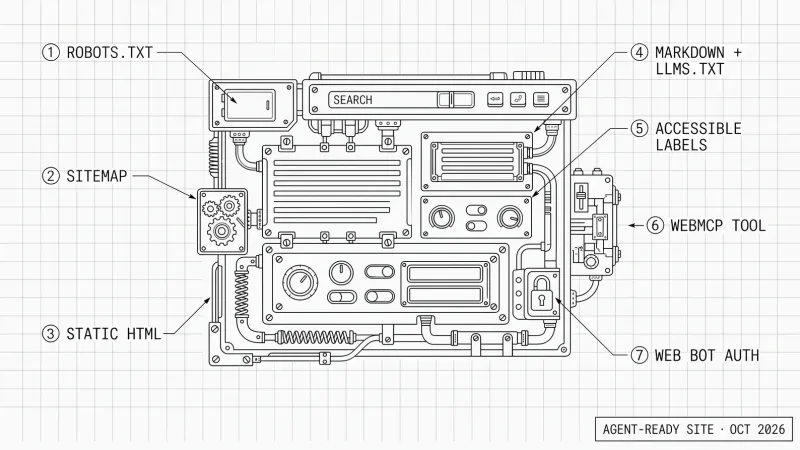
How to Optimize Your Website for Personal AI Agents
Personal AI agents like Dots, Muse and Grok Bot now use websites. Here is PAO, Personal Agent Optimization: how I prepare my site, and why accessibility comes first.
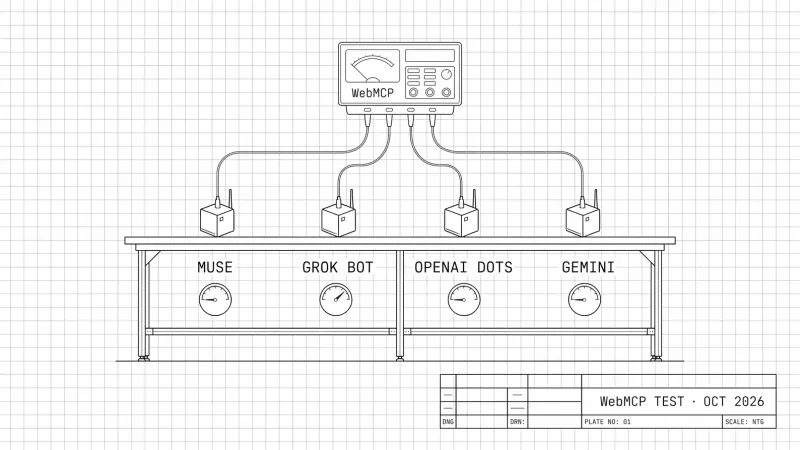
Do Personal AI Agents Use WebMCP? (October 2026 Benchmark)
October 2026 benchmark: four personal AI agents, my WebMCP news tool, a car booking and a form. Which agents used WebMCP, how fast, and what my logs saw.
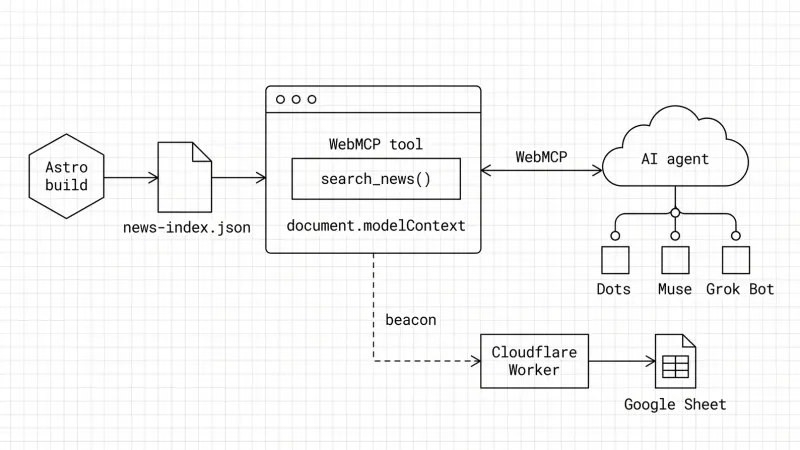
How to Build a WebMCP Tool: A Technical GEO Guide
WebMCP is a technical GEO optimization that lets AI agents call your site like an API. Here is how I built one on my blog and how I track agent calls.

ChatGPT Query Fan-Out Bookmarklet v2 (GPT-5.6)
A free bookmarklet that records ChatGPT's hidden fan-out queries live, now that GPT-5.6 no longer saves them in the conversation.
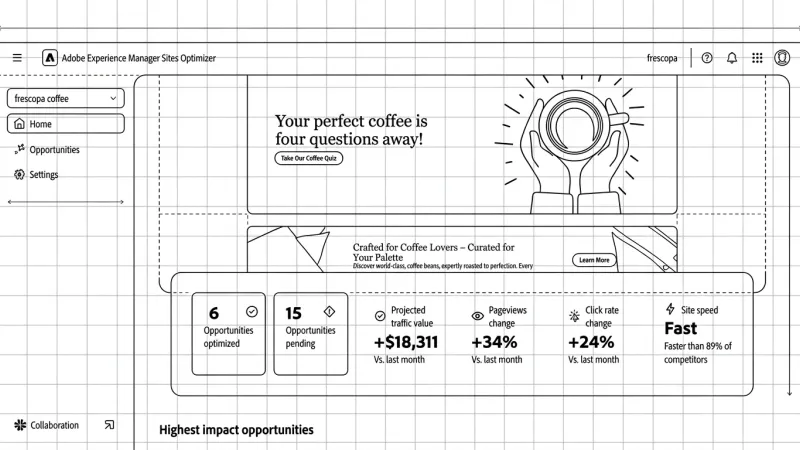
What is AEM Sites Optimizer?
Go behind the scenes of AEM Sites Optimizer to see how we are building an autonomous site optimization system at Adobe.